# Importing from Another Logbook
Wader offers a logbook import service to bring your complete flight history from another app or airline system. This page explains which formats are supported and how to get your file ready.
## How the import works
1. **Check supported formats** below — find your logbook app or airline system
2. **Follow the instructions** for your format to export the correct file
3. **Purchase the import service** using the links below
4. **Submit your file** via the **in-app Support Hub** (More → Support Hub) along with your Wader user code (found under More → Invite a Friend)
5. The Wader team processes your import and notifies you when complete
**Import times:**
* One-Time Import: up to **1 week**
* PRO subscribers: up to **2 business days**
{% hint style="warning" %}
Imports are processed **as-is** based on the data you provide. Please review your file carefully before submitting — errors or missing information will need to be corrected manually in the app after import, since Wader does not support batch editing.
{% endhint %}
**Purchase options:**
* [Buy One-Time Import](https://wader.lemonsqueezy.com/buy/1312e239-9445-4618-b7b4-416d5a57904e)
* [Subscribe to PRO](https://wader.lemonsqueezy.com/buy/f5620953-dc64-48fe-9ae0-9d7b56b106c6)
***
## Supported Formats
### Electronic Logbooks
LogTen Pro
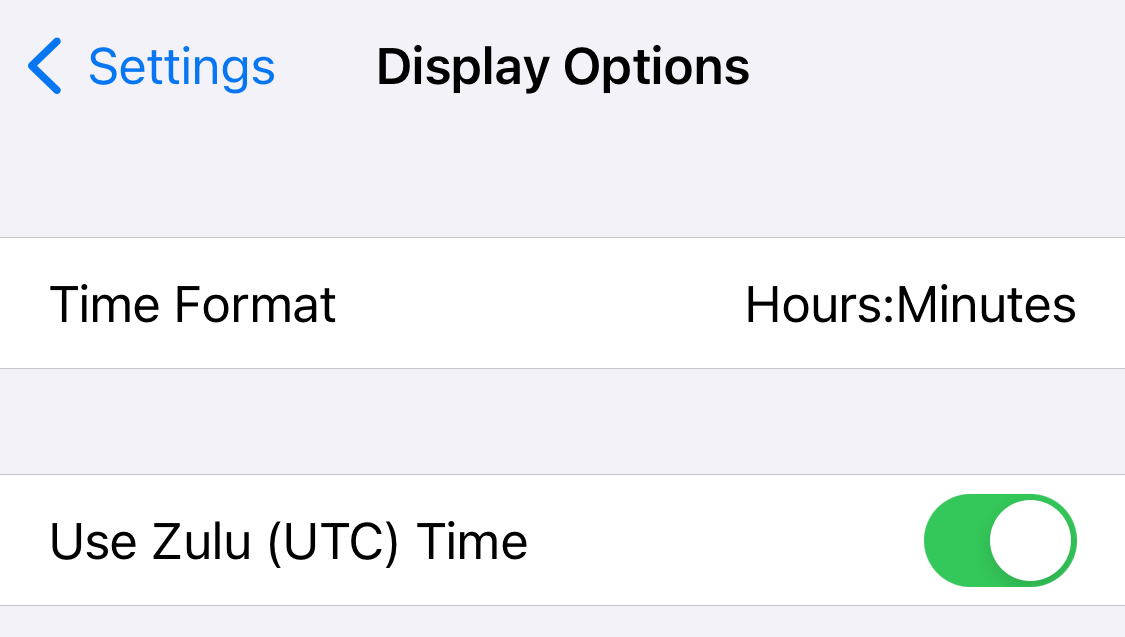
Before exporting, make sure your settings are correct: go to **Account → Settings → Display Options**, set **Time Format** to **Hours:Minutes**, and confirm that **Use Zulu (UTC) Time** is enabled.
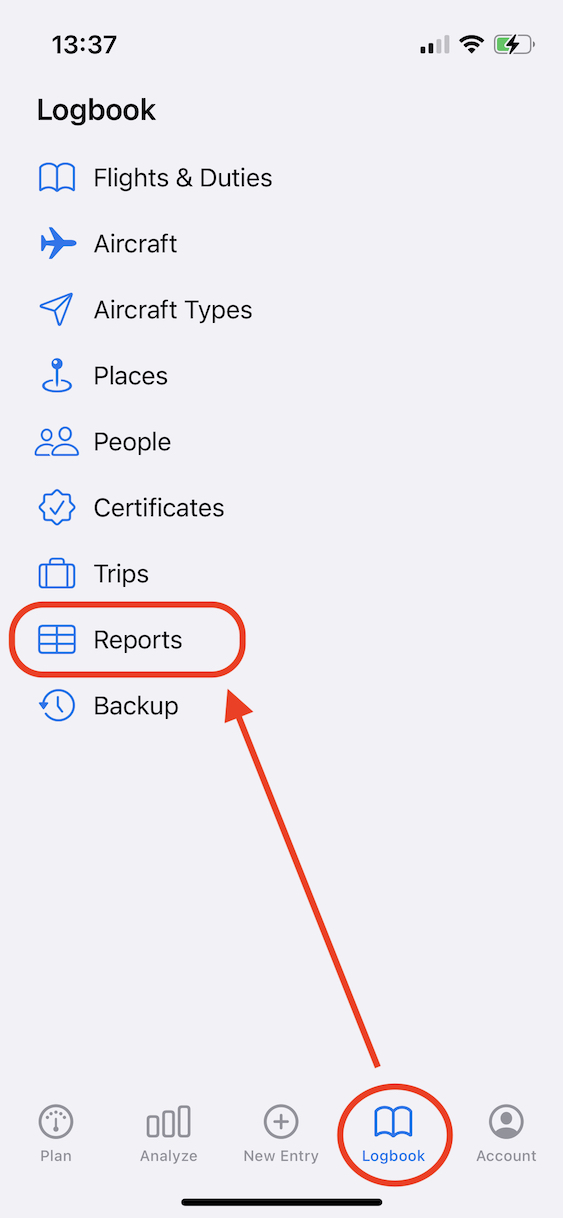
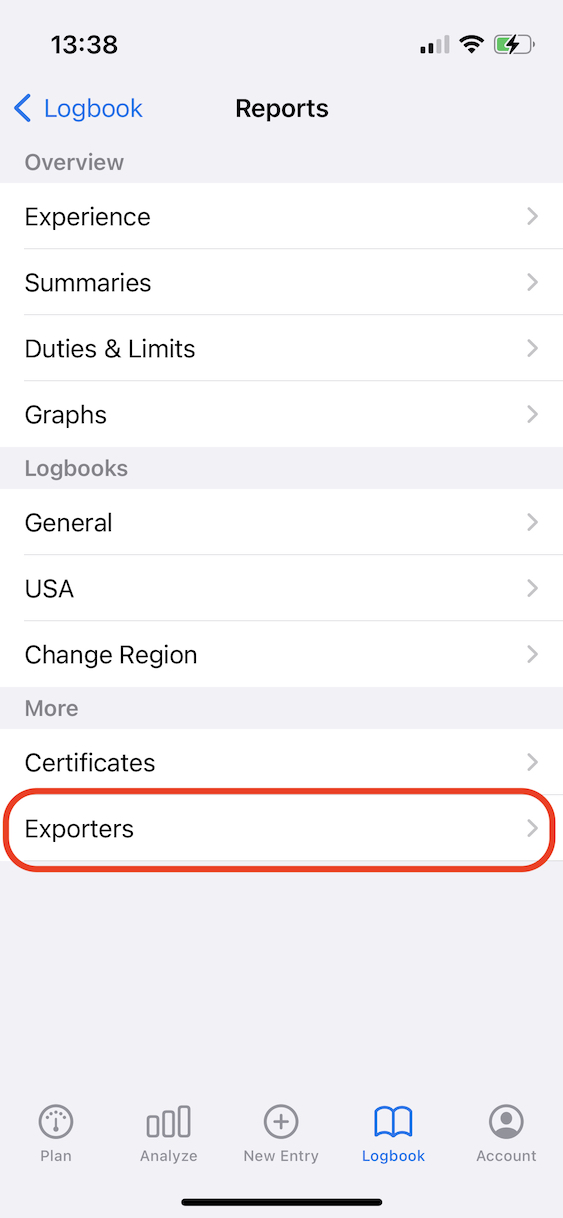
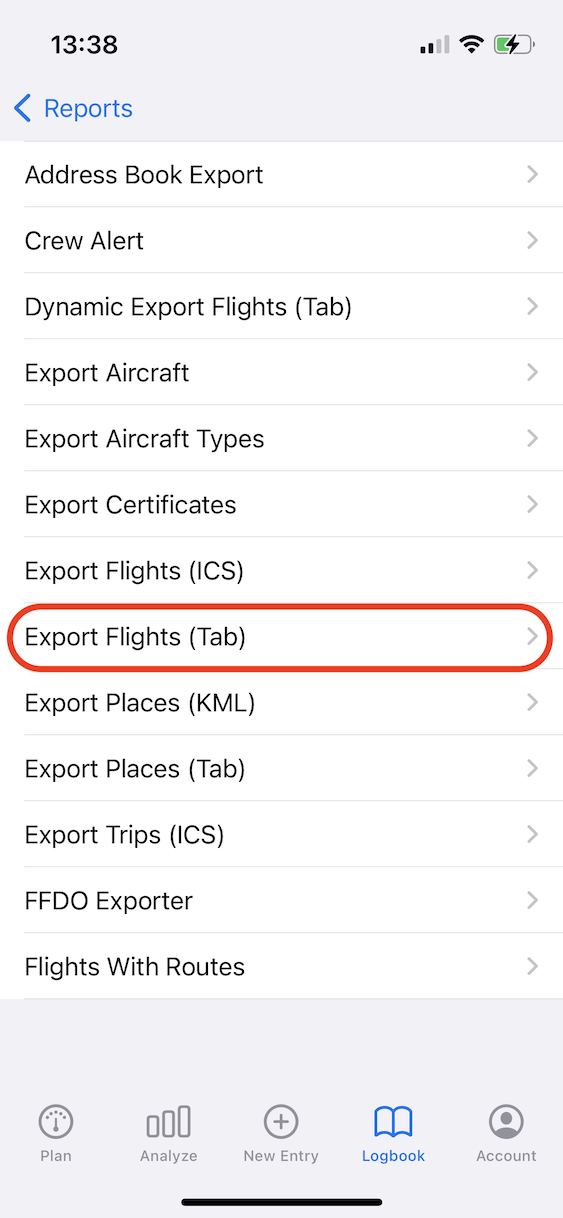
 Then go to the **Reports tab** of your LogTen application (available in both mobile and desktop), select **Exporters**, and generate the **Export Flights (Tab)** report. Make sure to select this report — not the Dynamic Export Flights.
mcc / crewLounge PILOTLOG
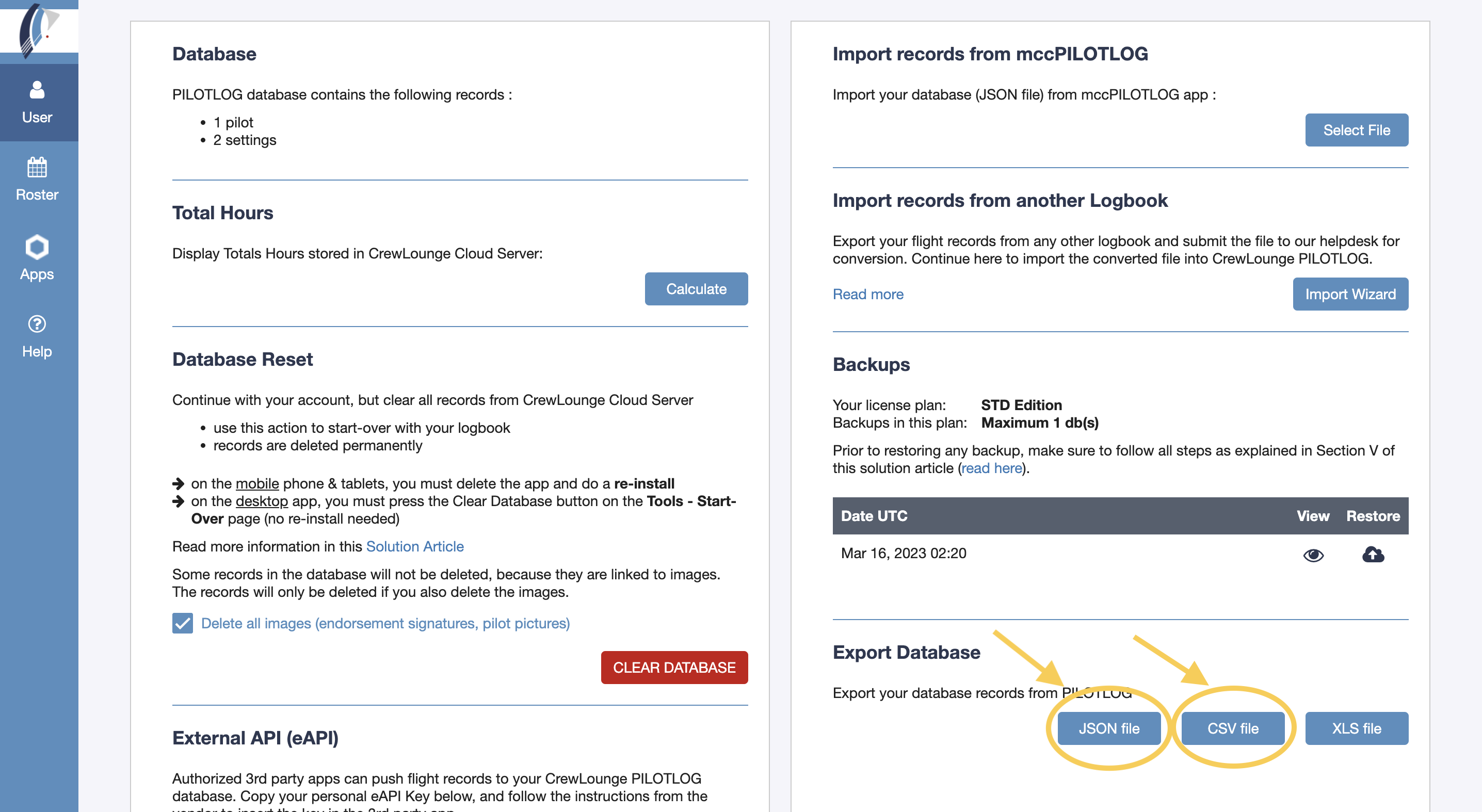
**myCrewLounge portal:** Go to your profile and select the option to export your database records from PILOTLOG as **CSV** and **JSON** files.
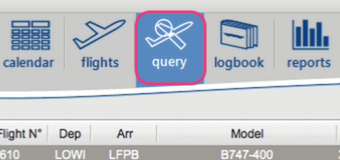
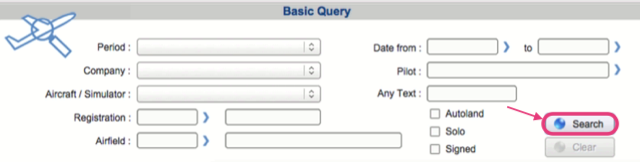
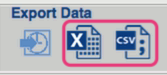
 **Old mccPILOTLOG desktop app:** Go to the Query tab, define a date range (or leave it blank), and click Search. Select the option to Export Data and save the report as CSV (or Excel if CSV is not available).
RB Logbook
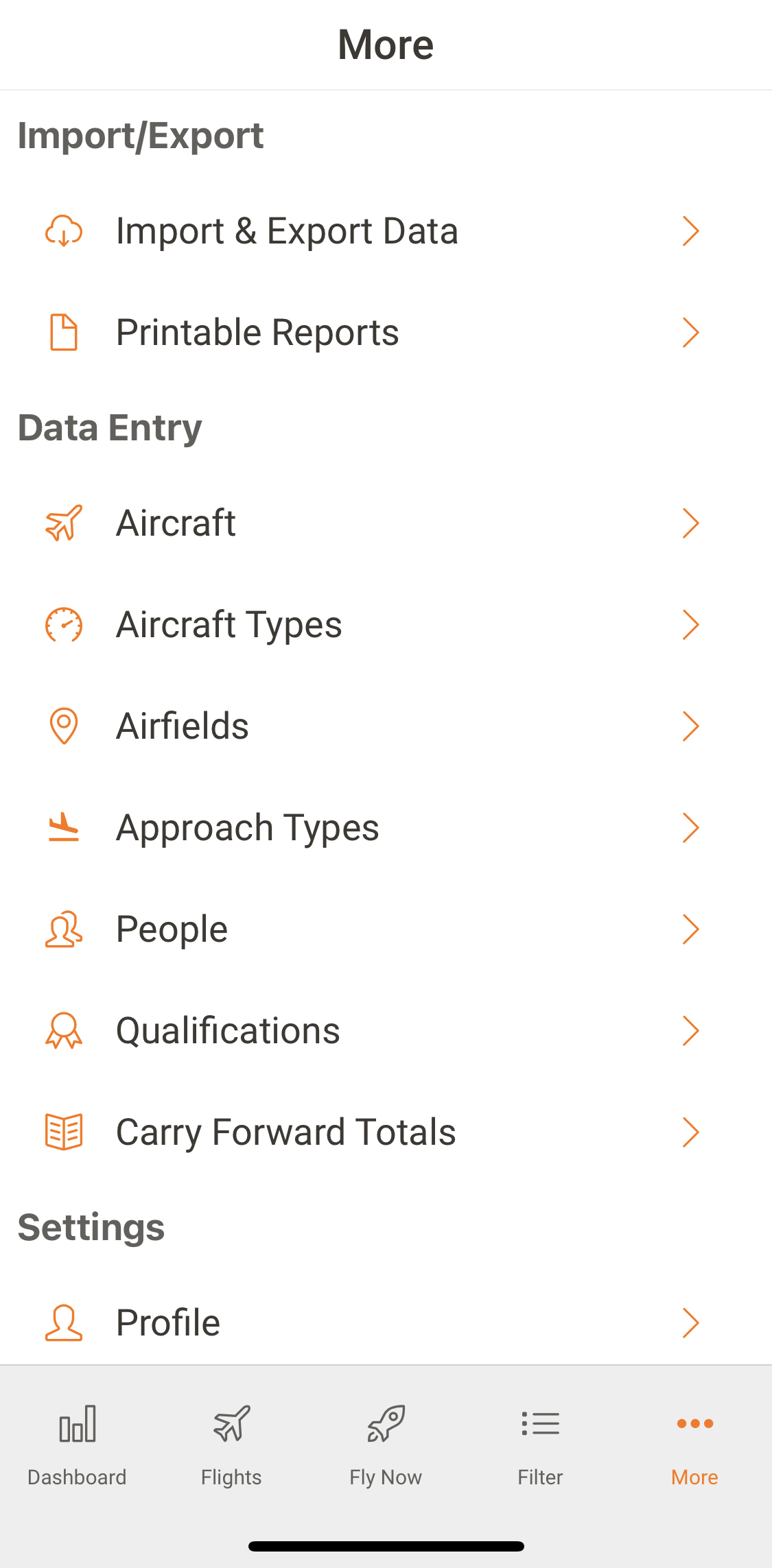
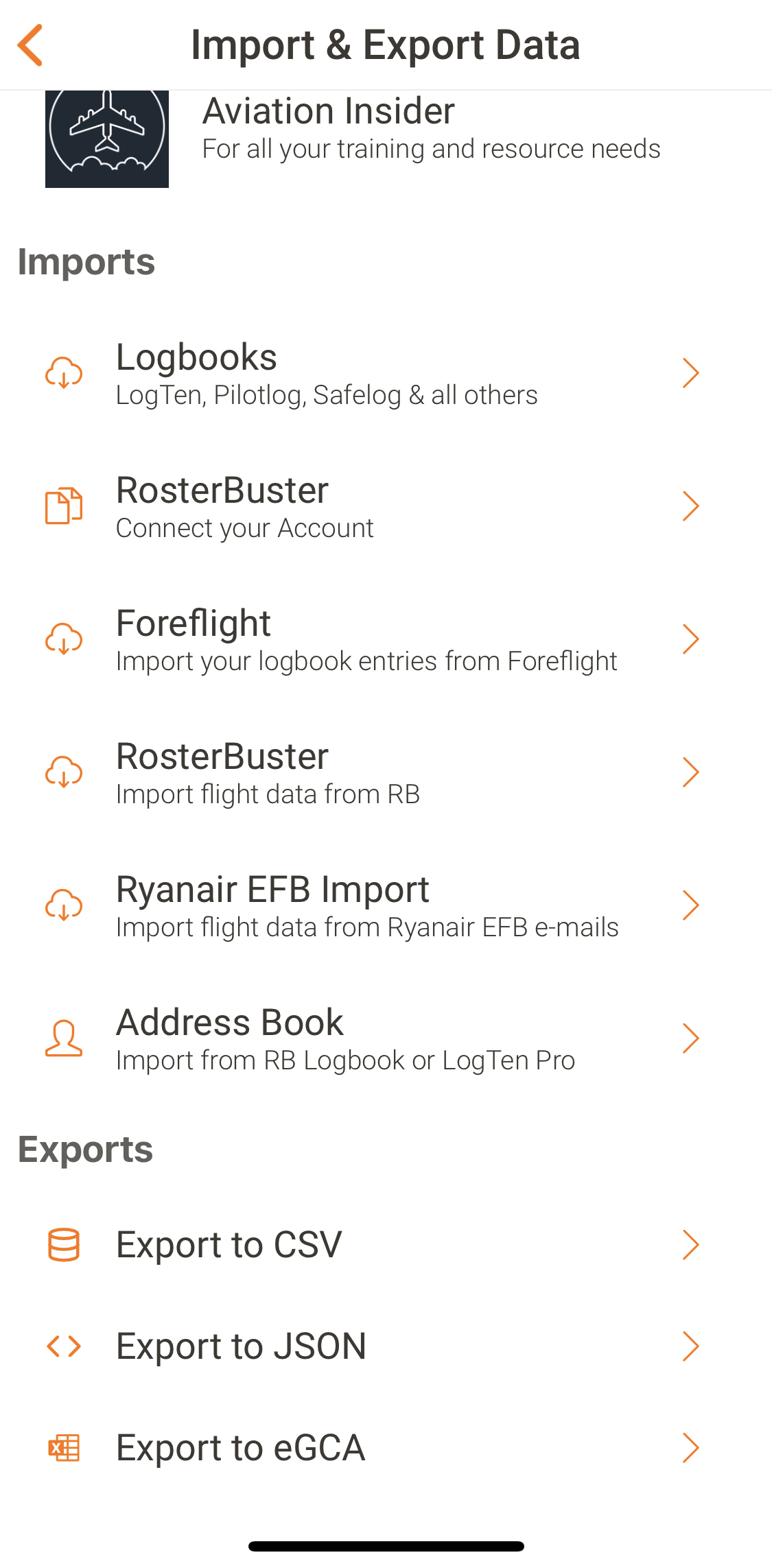
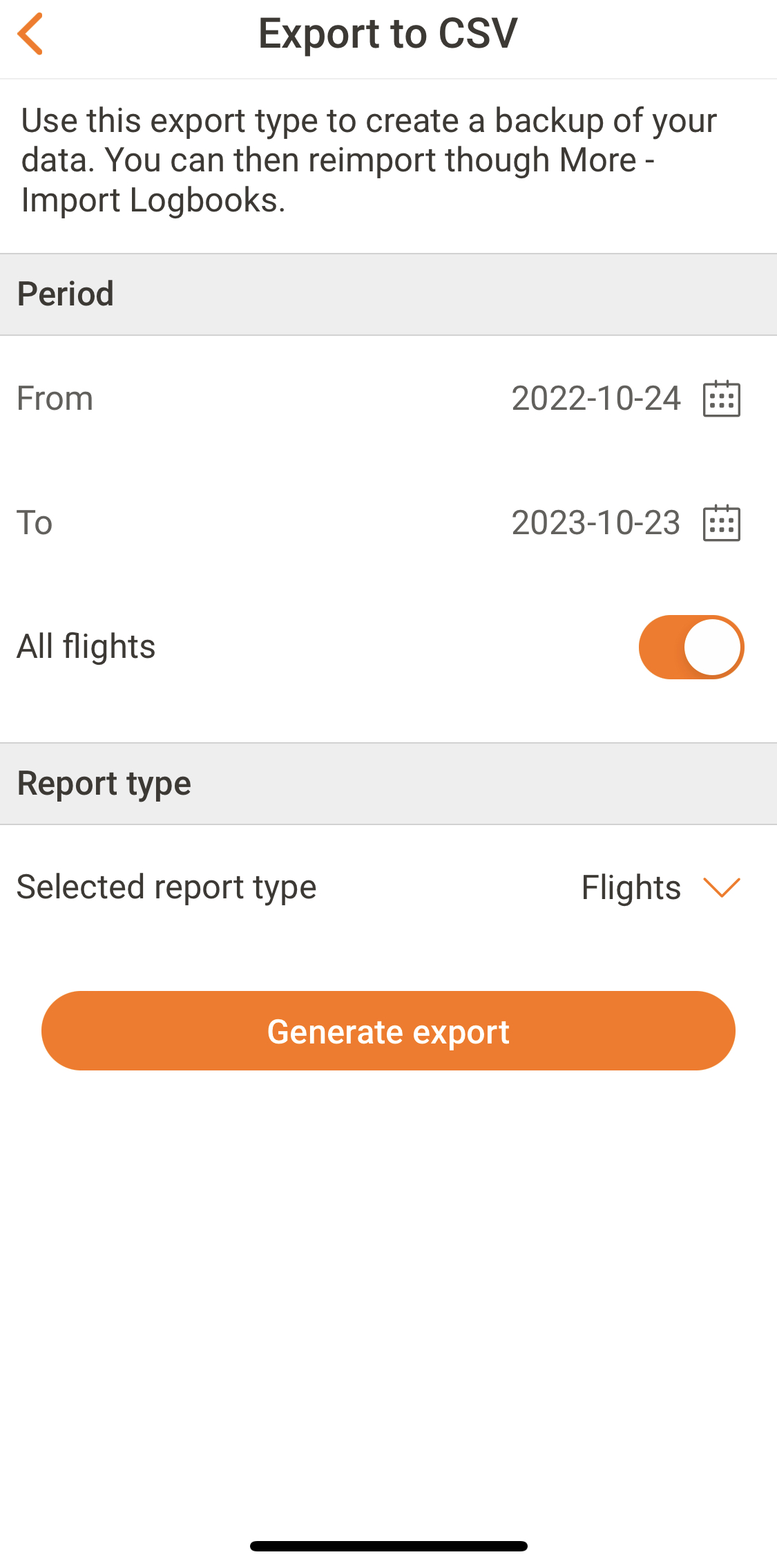
Go to the **More tab** in RB Logbook, select **Import & Export Data**, and look for **Export to CSV**. Define the period you want to import and generate all available report types: **Flights, Aircraft, and People**. We need all three files.
Others
If you have your hours in a digital logbook not listed above, you can transpose your records to our [standard spreadsheet template](#standard-spreadsheet), or consider a custom import via [PRO support](https://www.waderaviation.com/go-pro).
***
### Airline Systems
🌐 AIMS / eCrew
**AIMS eCrew (Legacy)**
1. Log in to AIMS eCrew in your browser
2. On the *Pilot LogBook* report page, select your dates and click **Export as CSV**
* If that button is not available, right-click the report and use *Save Target As* to save as an HTM file
**AIMS-v2 eCrew**
1. Log in to AIMS eCrew in your browser
2. Go to **Reports → My Logbook**, select your dates, and click **Go**
3. From the *File Export* menu, select **CSV**
🇧🇷 ANAC (SACI)
1. Log in to the ANAC system at [sistemas.anac.gov.br/SACI](https://sistemas.anac.gov.br/SACI/)
2. In the left menu, select **CIV → Declaração de Experiência de Voo**
3. At the bottom of the page, find the export option
This generates an .xlt file that can be opened with any spreadsheet application (Excel, Google Sheets, etc.).
🇷🇺 Aviabit
Export your logbook from Aviabit in **CSV** format.
{% hint style="warning" %}
Make sure the exported file includes **Block ON and Block OFF times** — these are essential for a proper import. If your file is missing this data or contains inconsistencies (such as Instrument Time exceeding total Duty Time), consider transferring your data to our [standard spreadsheet template](#standard-spreadsheet) to fill in any gaps before submitting.
{% endhint %}
🇪🇸 Air Europa
Go to your **Casillero Digital** app and tap **Logbook**:
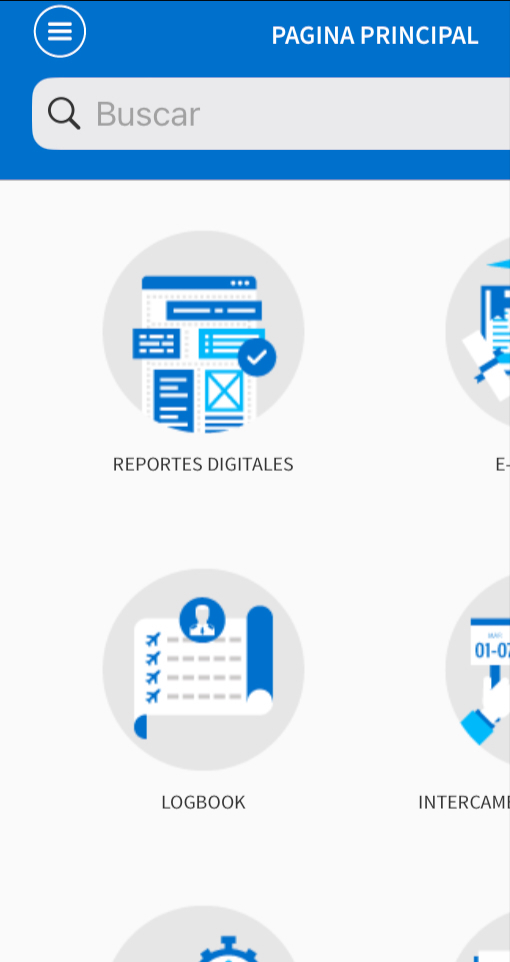 Set the date range and select export format **"Recommended for Logten Pro X"**:
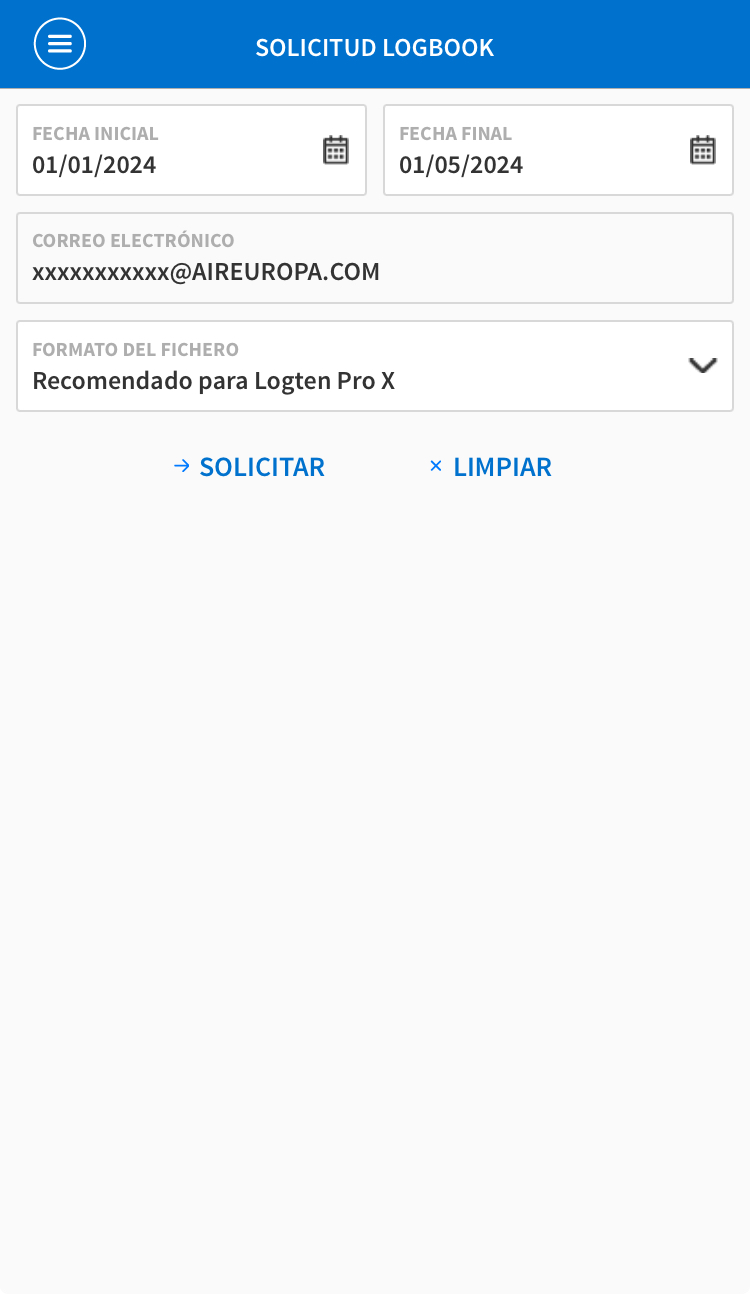 You will receive the file in your corporate email. Forward that file to us via the in-app Support Hub.
{% hint style="warning" %}
When forwarding from **Apple Mail**, the CSV file may be embedded in the email body instead of attached. Use **Gmail** or **Outlook** to forward it to ensure the attachment is preserved.
{% endhint %}
You will receive the file in your corporate email. Forward that file to us via the in-app Support Hub.
{% hint style="warning" %}
When forwarding from **Apple Mail**, the CSV file may be embedded in the email body instead of attached. Use **Gmail** or **Outlook** to forward it to ensure the attachment is preserved.
{% endhint %}
🇦🇪 Air Arabia
Log in to the Air Arabia **Cesar web portal** and generate the **Electronic Log Book** file in Excel (.xls) format.
{% hint style="success" %}
Air Arabia's system sometimes links the wrong aircraft type to a tail number. Our import process automatically corrects this using the aircraft registration. If you spot any remaining issues after import, let us know.
{% endhint %}
🇧🇷 Azul Linhas Aéreas
Request your logbook by opening a **Service Now** request with Azul. Once you receive it, submit both the **CSV** and **PDF** files via the in-app Support Hub.
🇦🇪 Emirates
1. Log in to the EK portal
2. Go to **All Apps → Flight Time Report**
3. Load the period you want to import
4. Click the **Download Spreadsheet** button (top-right corner of the table)
Submit the downloaded Excel file via the in-app Support Hub.
🇧🇷 GOL Linhas Aéreas
Get your monthly reports from **CrewLink**: go to the portal, select **FT Record** in the side menu, select the desired month, and click **Generate Report**. Download each monthly report and submit them all.
 {% hint style="info" %}
The consolidated file from the roster ("ESCALA") cannot be used — it does not include mandatory logbook information such as aircraft registration.
{% endhint %}
{% hint style="info" %}
The consolidated file from the roster ("ESCALA") cannot be used — it does not include mandatory logbook information such as aircraft registration.
{% endhint %}
🇧🇷 LATAM Airlines Brasil
LATAM may provide you with a PDF logbook directly. Submit that PDF file via the in-app Support Hub.
Note: LATAM Cargo uses a different format that is currently not supported. In that case, the [standard spreadsheet](#standard-spreadsheet) is the best option.
🇲🇻 Trans Maldivian Airways
Go to the **RAMIS system** and export your flights in Excel format. Submit that file via the in-app Support Hub.
Others
If your airline system provides you with all required logbook information in a different format, submit a request via the in-app Support Hub and the team will evaluate whether it can be imported.
***
## Standard Spreadsheet
If your format is not listed above, you can transpose your records into our template:
{% file src="" %}
Download spreadsheet template
{% endfile %}
**Follow the field specifications below exactly — incomplete or incorrectly formatted files cannot be imported.**
| Field | Status | Description |
| ------------------------- | ------------------------------------------------ | ----------------------------------------------------------------------------------------------------------------------------------------------------------- |
| `flightDate` | (required) | Date of the flight in `YYYY-MM-DD` format (e.g. `2023-06-15`) |
| `aircraftIata` | (recommended) | IATA aircraft type code (e.g. `738` for Boeing 737-800) |
| `aircraftIcao` | (recommended) | ICAO aircraft type code (e.g. `B738`). At least one of `aircraftIata` or `aircraftIcao` should be provided |
| `flightNumber` | (optional) | Flight number (e.g. `LA1234`). Do not include the airline prefix if it is already in the field |
| `aircraftTailnumber` | (recommended) | Aircraft registration / tail number (e.g. `PT-MSY`). Used to identify the specific aircraft |
| `depAirport` | (required) | ICAO or IATA code of the departure airport (e.g. `SBGR` or `GRU`) |
| `arrAirport` | (required) | ICAO or IATA code of the arrival airport (e.g. `SBSP` or `CGH`) |
| `timeReference` | (required) | Timezone reference for all time fields. Use `UTC` for Zulu time, or a UTC offset such as `UTC-3` or `UTC+1` |
| `baseAirport` | (optional) | ICAO or IATA code of your home base airport. Used to calculate cross-country time if not provided separately |
| `startTime` | (recommended) | Block-off time (chocks removed / pushback) in `HH:MM` format |
| `takeoffTime` | (recommended) | Wheels-off time in `HH:MM` format |
| `landingTime` | (recommended) | Wheels-on time in `HH:MM` format |
| `parkingTime` | (recommended) | Block-on time (chocks in / engines off) in `HH:MM` format |
| `totalTime` | (required) | Total flight time (block-to-block) in decimal hours (e.g. `1.5`) or `HH:MM` format (e.g. `1:30`) |
| `stickTime` | (optional) | Time at the controls (airborne time) in decimal hours or `HH:MM` |
| `nightTime` | (optional) | Night flying time in decimal hours or `HH:MM` |
| `actualInstrumentTime` | (optional) | Actual IMC time in decimal hours or `HH:MM` |
| `simulatedInstrumentTime` | (optional) | Simulated instrument time (hood / foggles) in decimal hours or `HH:MM` |
| `crossCountryTime` | (optional) | Cross-country time in decimal hours or `HH:MM`. If omitted, Wader will calculate it automatically based on `baseAirport` |
| `takeoffs` | (optional) | Total number of takeoffs (day + night). If omitted, defaults to `1` |
| `landings` | (optional) | Total number of landings (day + night). If omitted, defaults to `1` |
| `dayTakeoffs` | (optional) | Number of daytime takeoffs |
| `nightTakeoffs` | (optional) | Number of night takeoffs |
| `dayLandings` | (optional) | Number of daytime landings |
| `nightLandings` | (optional) | Number of night landings |
| `approachType` | (optional) | Type of instrument approach flown (e.g. `ILS`, `RNAV`, `VOR`, `NDB`). Use one value per flight; if multiple approaches were flown, use the most significant |
| `function` | (required) | Pilot function / role. Accepted values: `PIC`, `SIC`, `FO`, `Relief`, `Instructor`, `Student`, `Examiner`, `Deadhead`, `Observer` |
| `ifrTime` | (optional) | Total IFR time in decimal hours or `HH:MM` |
| `multiPilot` | (optional) | Multi-crew / multi-pilot time in decimal hours or `HH:MM` |
| `pilotName1` | (recommended) | Full name of the other crew member in the primary crew position (e.g. Captain if you are FO). Used for logbook crew records |
| `pilotName2` | (optional) | Full name of an additional crew member |
| `pilotName3` | (optional) | Full name of an additional crew member |
| `pilotName4` | (optional) | Full name of an additional crew member |
| `remarks` | (optional) | Free-text remarks or notes for the flight entry |
| `isSimulator` | (optional) | Set to `true` if this entry is a simulator session rather than an actual flight. Defaults to `false` |
| `qualificationLevel` | (optional) | Simulator qualification level, if applicable (e.g. `FFS`, `FTD`, `FNPT`). Only relevant when `isSimulator` is `true` |