> For the complete documentation index, see [llms.txt](https://support.waderaviation.com/llms.txt). Markdown versions of documentation pages are available by appending `.md` to page URLs; this page is available as [Markdown](https://support.waderaviation.com/quick-start/logbook/logging-flights/flight-form-reference.md).
# Flight Form Reference
A complete reference for every field in the Wader flight form.
This page documents every field in the Wader flight form. Fields are listed in the order they appear on screen.
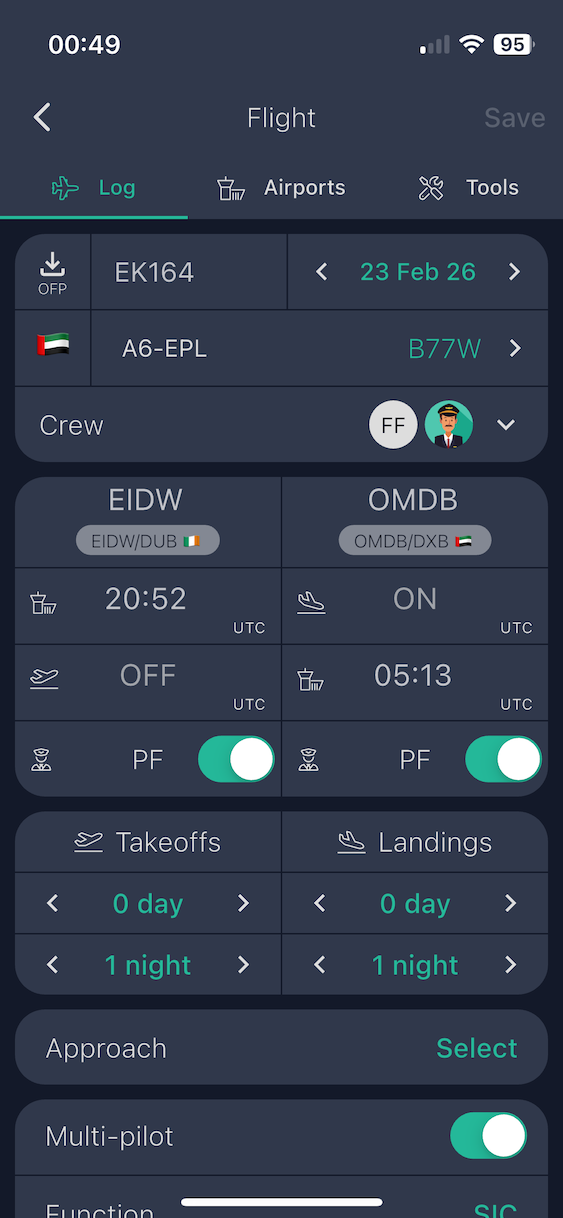
The flight form — basic info, aircraft, crew, times, and airports
***
## Basic Information
**Flight Number** Optional. Free text, auto-capitalized. Enter your airline flight number or any identifier you use in your logbook.
**Date** Defaults to today. This is the reference date for all times associated with the flight.
***
## Aircraft
**Tail Number** The aircraft registration. The country-code prefix is set in Preferences and prepended automatically.
**Aircraft Type** ICAO type code for the aircraft (for example, B738, A320, C172). Searchable dropdown — start typing to filter the list.
**Use last aircraft** Toggle this on to repeat the tail number and aircraft type from your most recent flight. Saves time when flying the same aircraft regularly.
***
## Crew
**Total Crew** Select the number of pilots on the flight: 1, 2, 3, or 4.
**Pilot names** Up to four name fields, one per pilot. Each field supports autocomplete from names entered in previous flights.
**Use last crew** Toggle this on to repeat all pilot names from your most recent flight.
**Pilot Flying (PF)** Visible when total crew is greater than 1. Select which pilot was flying at departure and which was flying at arrival.
***
## Flight Times (all UTC)
All times are entered in UTC.
| Label | Meaning |
| ------- | -------------------------------------- |
| **OUT** | Off-block — the aircraft starts moving |
| **OFF** | Takeoff — wheels up |
| **ON** | Landing — wheels down |
| **IN** | On-block — aircraft parked at stand |
OUT and IN are required times. OFF and ON are optional but recommended — they improve the accuracy of logbook totals and automatically determine whether takeoffs and landings are counted as day or night.
***
## Airports
**FROM** Departure airport. Accepts both ICAO and IATA codes. Wader automatically looks up the airport name and data.
**TO** Arrival airport. Accepts both ICAO and IATA codes.
{% hint style="info" %}
You can save a flight with no fields filled in and complete it later. There are no required fields for saving. Fields such as airports and times affect whether a flight is validated and counted in your totals and exports, but they are never required just to save.
{% endhint %}
***
## Takeoffs and Landings
**Day Takeoffs / Night Takeoffs** Tap to increment the counter for day or night takeoffs.
**Day Landings / Night Landings** Tap to increment the counter for day or night landings.
***
## Approach
**Approach Type** Scrollable dropdown. Options include ILS CAT I, ILS CAT II, ILS CAT III, RNP-AR, VOR, NDB, Visual, and others.
***
## Logbook Details
**Multi-Pilot** Visible when total crew is greater than 1. Toggle on when the flight is classified as a multi-pilot operation under applicable regulations. This reflects the regulatory classification of the operation, not simply the number of pilots aboard. Some flights with more than one pilot are still classified as single-pilot operations — for example, instruction flights during flight school where only one pilot is logged as PIC. Enabling this field allows separate tracking of PIC time and SIC time.
**Function** Your role on this flight. Options:
* **PIC** — Pilot in Command
* **SIC** — Second in Command
* **FE** — Flight Engineer
* **FI** — Flight Instructor
* **Dual** — Dual instruction received
* **SPIC** — Supervised PIC
* **PICUS** — PIC Under Supervision. See [PICUS Time](/reference/picus-time.md).
**Flight Rules** Select **IFR**, **VFR**, or **IFR+VFR** for a mixed flight.
**Flight Conditions** Select **None**, **Actual Instrument**, or **Simulated Instrument**.
**Actual Instrument %** Visible when Actual Instrument conditions are selected. A slider from 0 to 100% (default 100%) indicating the proportion of the flight flown in actual instrument conditions.
**Cross-Country** Checkbox. See [Cross-Country Time](/reference/cross-country-time.md) for how this is determined in Wader.
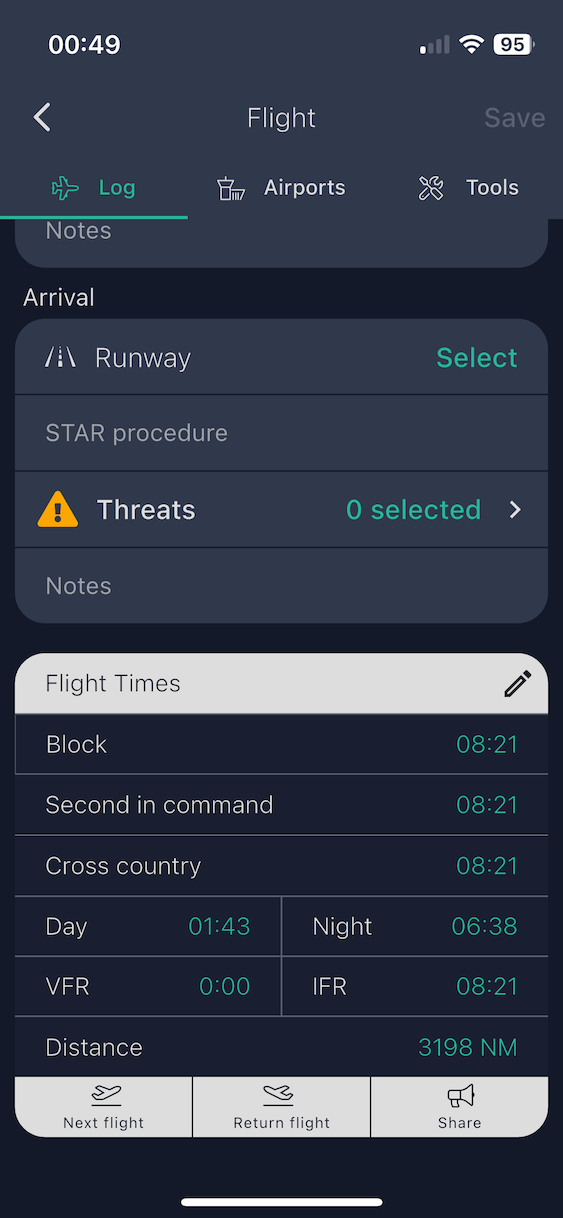
Logbook details, optional time fields, remarks, and operational report
***
## Optional Times
The following fields appear automatically based on your other selections. You do not need to enable them manually.
| Field | Appears when |
| ---------------------------- | ----------------------------------------------------------------------------------------------- |
| **Day Time / Night Time** | Actual Instrument conditions selected, OR total crew > 2, OR automatic night calculation is off |
| **VFR Time / IFR Time** | Flight Rules is set to IFR+VFR |
| **Stick Time / Relief Time** | Total crew > 2 (augmented crew operations) |
***
## Remarks
Free text field. Use this for endorsements, special procedures, route notes, or any information you want preserved in your logbook.
Keep remarks concise — long text may be cropped in PDF logbook exports.
***
## Operational Report (Departure and Arrival)
Visible when airports are selected. Contribute to our community-fed threats and airport statistics!
This section is for your personal reference only and is not exported to the PDF logbook.
**Runway** Dropdown populated from the airport's runway data.
**SID / STAR Procedure** Free text. Enter the departure or arrival procedure name. Appears for IFR flights.
**SID / STAR Transition** Free text. Enter the transition name. Appears once a procedure has been entered.
**Threats** Select from a list of operational threats such as wind shear, wake turbulence, and similar items.
**Notes** Freeform private notes about this particular operation. Only you have acces to this and it is not used for airport statistics.