# Searching & Filtering
When your logbook grows to hundreds or thousands of flights, finding a specific entry quickly matters. Wader gives you two tools for this: **Search** and **Filter**.
***
## Search
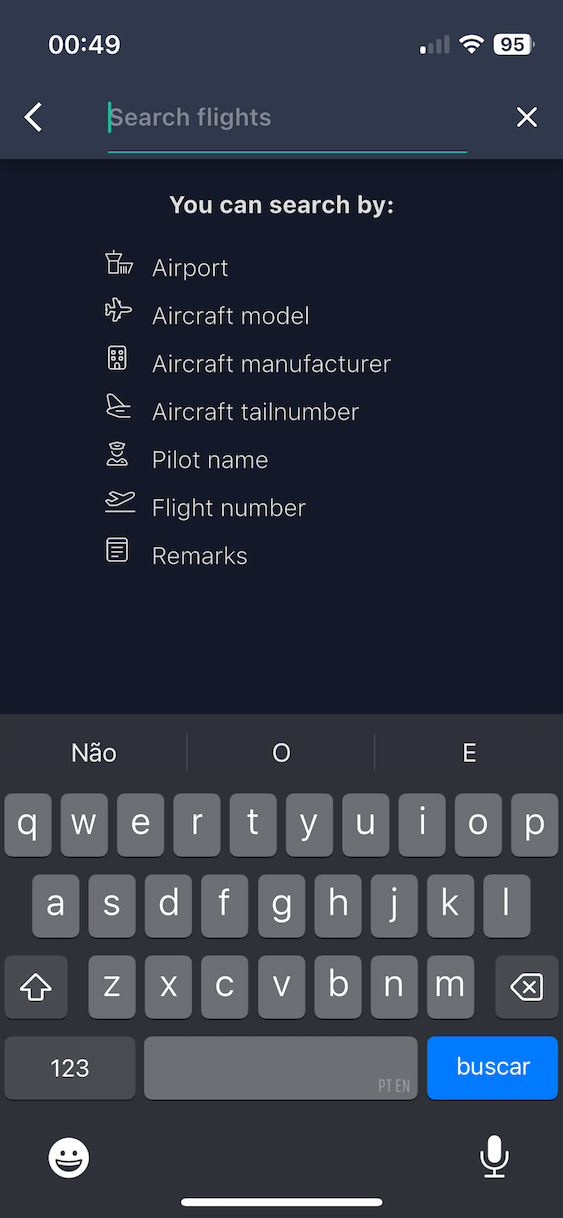
Tap the **magnifying glass icon** in the top bar of the Logbook screen to open the search bar.
You can search flights by any of the following:
| Search term | Examples |
| ----------------- | --------------------------------------------------- |
| **Airport** | ICAO code (`EGLL`) or IATA code (`LHR`) |
| **Pilot name** | First or last name of any crew member on the flight |
| **Flight number** | `BA456`, `UA101` |
| **Tail number** | Aircraft registration, e.g. `G-EUOE` |
| **Aircraft type** | Type designator, e.g. `A320`, `B738` |
| **Remarks** | Any text recorded in the remarks field |
Results update as you type. Tap a result to open that flight.
{% hint style="warning" %}
Search may not work correctly with **special characters** (accented letters, diacritics, non-Latin scripts). For best results, use standard Latin characters — for example, search `Zurich` rather than `Zürich`.
{% endhint %}
Search flights by airport, pilot, tail number, aircraft type, or remarks
***
## Filter
Filter by flight type, completion status, or date range
Tap the **filter icon** in the top bar to open the filter panel. Filters let you narrow the flight list to a specific subset of entries.
Available filters:
| Filter | What it shows |
| ------------------------------- | ---------------------------------------------------------- |
| **Incomplete logs only toggle** | Only flights that are missing required fields (gray cards) |
| **Flight toggle** | Show/Hide flights from the list |
| **Simulator toggle** | Show/Hide sim sessions from the list |
| **Date range** | Flights within a specific start and end date |
### Combining Filters
Filters can be combined. For example, you can filter for **real flights only** within a **specific date range** at the same time.
### Active Filter Indicator
When one or more filters are active, a visual indicator appears on the filter icon to remind you that the list is not showing all flights.
### Clearing Filters
Tap **Reset** inside the filter panel to clear all active filters and return to the full flight list.
***
## Tips
{% hint style="success" %}
Use the **Incomplete flights only** filter to quickly surface any gray (incomplete) logbook entries. This is a great way to do a regular logbook audit and make sure all your flights are counted toward your totals.
{% endhint %}
**Tip:** Combine **Simulator sessions only** with a date range filter to quickly review your simulator currency for a specific period.